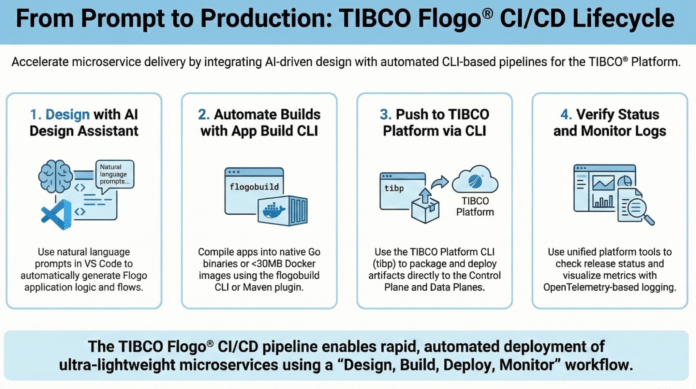

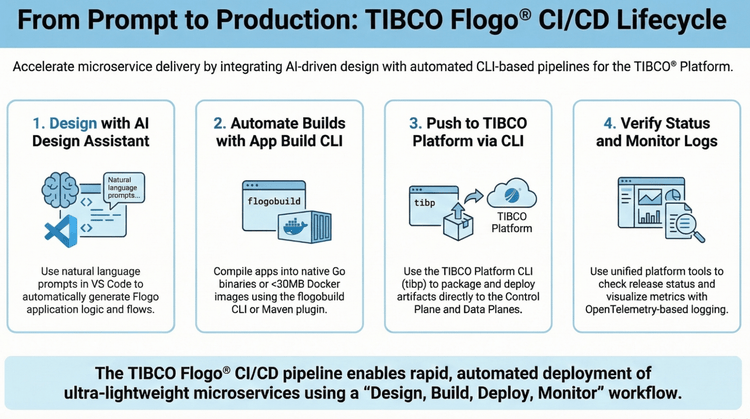
How to Achieve Automated Deployment with TIBCO Flogo® from Prompt to Production?
TIBCO Platform Integration – Flogo® streamlines the transition from concept to production by integrating AI-assisted design with the Flogo Design Assistant and automated deployment via the Flogo App Build and TIBCO Platform CLIs. By compiling apps into native Go binaries, Flogo produces ultra-lightweight Docker images that are optimized for rapid, automated scaling across multi-cloud and on-premises environments.
How do you design TIBCO Flogo® apps using AI?
The journey begins with TIBCO Flogo® Design Assistant, a Tech Preview feature that acts as an interactive design companion. It allows users to create and configure Flogo applications using natural language prompts without manual UI navigation.
Step 1: Create the App via AI Prompt
- Start the Assistant Server: In the Sidebar View of Flogo in VS Code, navigate to the Design Assistant (Preview) section and select Start Server.
- Generate the Flow: Input a prompt into your AI assistant (e.g., Anthropic Claude or GitHub Copilot) to create the scaffolding.
- Sample Prompt: “Create a flogo app with a timer trigger set to repeat every 30 seconds and a log activity with the message ‘CI/CD Integration Demo’.”
Automatic Generation: The Assistant executes tools like create-project, create-trigger, and create-activity to generate a valid .flogo file automatically in your workspace.
What tools are best for building Flogo artifacts?
Once the design is validated, you must choose the right tool for automation. Both the Flogo App Build CLI and the Flogo Maven Plugin compile your app into a high-performance Golang engine executable.
Feature Flogo App Build CLI (flogobuild) Flogo Maven Plugin
Primary Use Case Building binaries, Docker images, and Platform ZIPs via command line Integrating Flogo with existing Java/Maven-based CI/CD pipelines
Key Output Native Executables (.exe), Docker Images, and Platform ZIP files Standardized POM-based artifacts
Testing Support Command-line unit testing via test-app Native Maven test cycle execution
Deployment Generates specialized TIBCO Control Plane deployment files Standardized build-and-install lifecycle
What are the steps to build and test Flogo artifacts using the CLI?
The Flogo – App Build CLI (flogobuild) handles automated builds and testing, ensuring your app is production-ready.
Step 2: Build and Test the Application
- Create a Build Context: Point the CLI to your environment:
flogobuild create-context –context-name “DefaultCtx” –vsc-extension-file “<path-to-flogo-vsix>” - Run Automated Unit Tests: Execute test suites defined in your .flogotest file to verify logic at the activity level:
flogobuild test-app –app-json-file DemoApp.flogo –test-file DemoApp.flogotest - Generate a Docker Image or Executable:
- Docker Image: flogobuild build-docker-image -f DemoApp.flogo -i demo-app:v1
- Native Executable: flogobuild build-exe -f DemoApp.flogo -p linux/amd64
Here are some sample dockerfiles for different distros – link
How do you deploy Flogo artifacts to the TIBCO® Platform?
For production deployment to the TIBCO® Platform (Control Plane), you must package the app and use the TIBCO Platform CLI (tibop).
Step 3: Automated Deployment
- Package for Platform: Generate the required deployment ZIP file:
flogobuild build-tp-deployment -f DemoApp.flogo -o ./builds -z DemoApp.zip - Import Build: Upload the artifact to the Control Plane:
tibcop flogo:import-build –file ./builds/DemoApp.zip - Deploy the App: Trigger the deployment to your target Data Plane using the returned Build ID:
tibcop flogo:deploy-app –build-id <BUILD_ID> –dataplane-name <YOUR_DATAPLANE>
How do you verify the deployment and check application logs?
After deployment, verification ensures your logic—including the “CI/CD Integration Demo” log message—is running correctly.
Step 4: Monitoring and Logging
- Check Status: Verify the release status using the CLI:
tibcop flogo:get-app-release-status –app-id <APP_ID> - Verify Logs: Confirm that the log message appears at the specified frequency.
Key Takeaways: TIBCO Flogo® CI/CD Benefits
- AI-Driven Development: Use Flogo Design Assistant to build scaffolding via natural language prompts.
- Ultra-Lightweight Footprint: Native Go binaries ensure Docker images stay under 30MB, minimizing cloud overhead.
- Pipeline Native: Commands like flogobuild and tibcop are specifically designed for embedding in GitHub Actions or Jenkins.
- Deployment Flexibility: Build once and deploy as a binary, Docker container, or directly to the TIBCO® Platform.
Download the TIBCO Flogo®, TIBCO Flogo® App Build CLI, TIBCO Platform CLI today via the TIBCO eDelivery Site
Technical Resources for your reference: